Manage Account
Manage verification, invites, domain, subscription, and API keys.
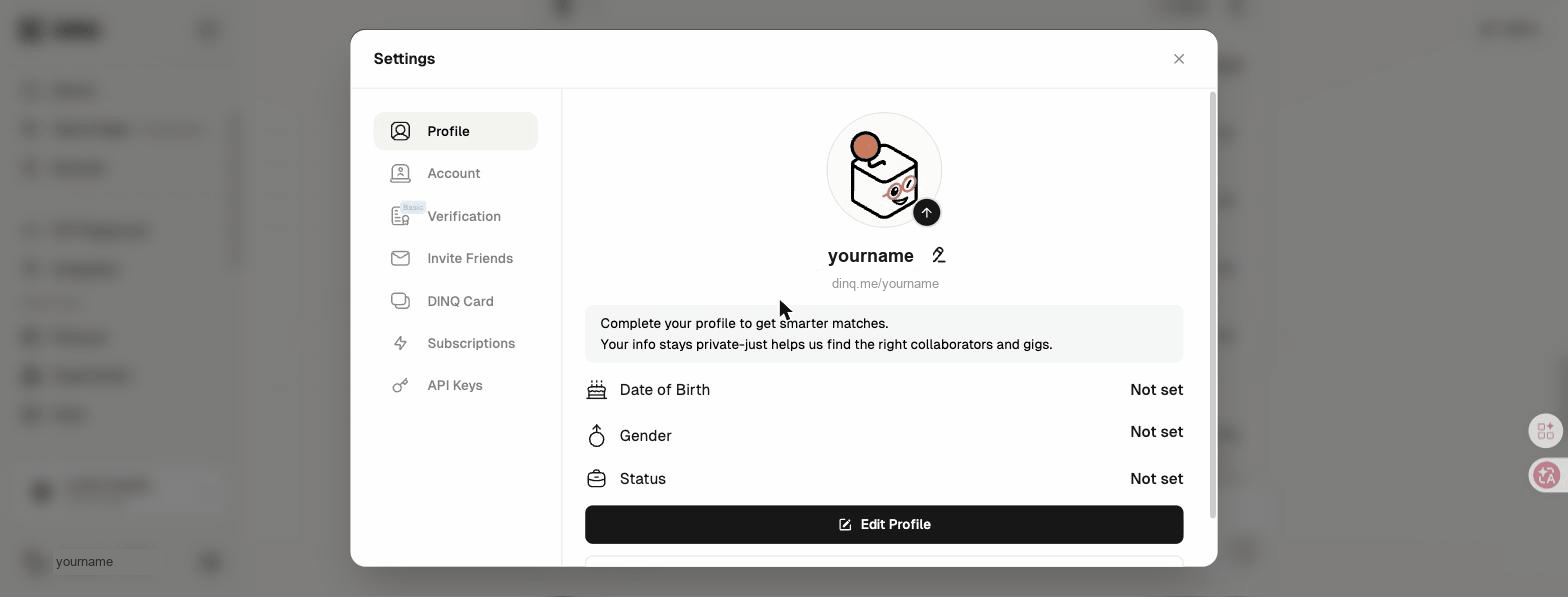
To manage your DINQ account, click Settings in the left-hand menu. Settings is organized into the following sections:
- Verification
- Invite friends
- DINQ domain
- Subscription
- API keys
Verification
Verify your education and career background, and link your LinkedIn and X accounts to build credibility on DINQ.
You can verify:
- Education and career: Authenticate your background and work history.
- Social accounts: Link your LinkedIn and X profiles.
Invite friends
Share your unique invite link with your network. When someone joins through your link, you earn DINQ Credits as a reward.
From the invite dashboard, you can:
- Copy your unique invite link.
- Track successful referrals.
- View your accumulated rewards and credit bonuses.
DINQ domain
Set up or update your custom DINQ link, such as dinq.me/yourname, and generate a QR code for easy sharing.
Your public profile URL is used for your Profile and custom QR code.
Subscription
View and manage your current plan, credit balance, usage history, and billing records.
From the subscription section, you can:
- Upgrade or downgrade your subscription tier.
- Update your payment method.
- Monitor available credits and usage history.
- Access and download past invoices.
For plan and credit details, see Pricing & Credits.
API keys
Create and manage secure API keys to connect DINQ with external tools, applications, and development workflows.
Keep your API keys confidential. They grant access to your account data and should not be shared publicly.