Review Results
Review returned candidate lists and open promising profiles.
When a search finishes, DINQ shows a list of candidate results with basic information, public profile links, and context about why each person may match your search.
Treat the results page as a starting point for review, not a final decision. Scan the list first, then open the most promising profiles for deeper evaluation.
What you see in results
Candidate results may include:
- Name.
- Current role and company.
- Location.
- Public profile links.
- Relevant skills or project clues.
- A short note explaining why DINQ surfaced the candidate.
- An expandable profile or link to a deeper profile view.
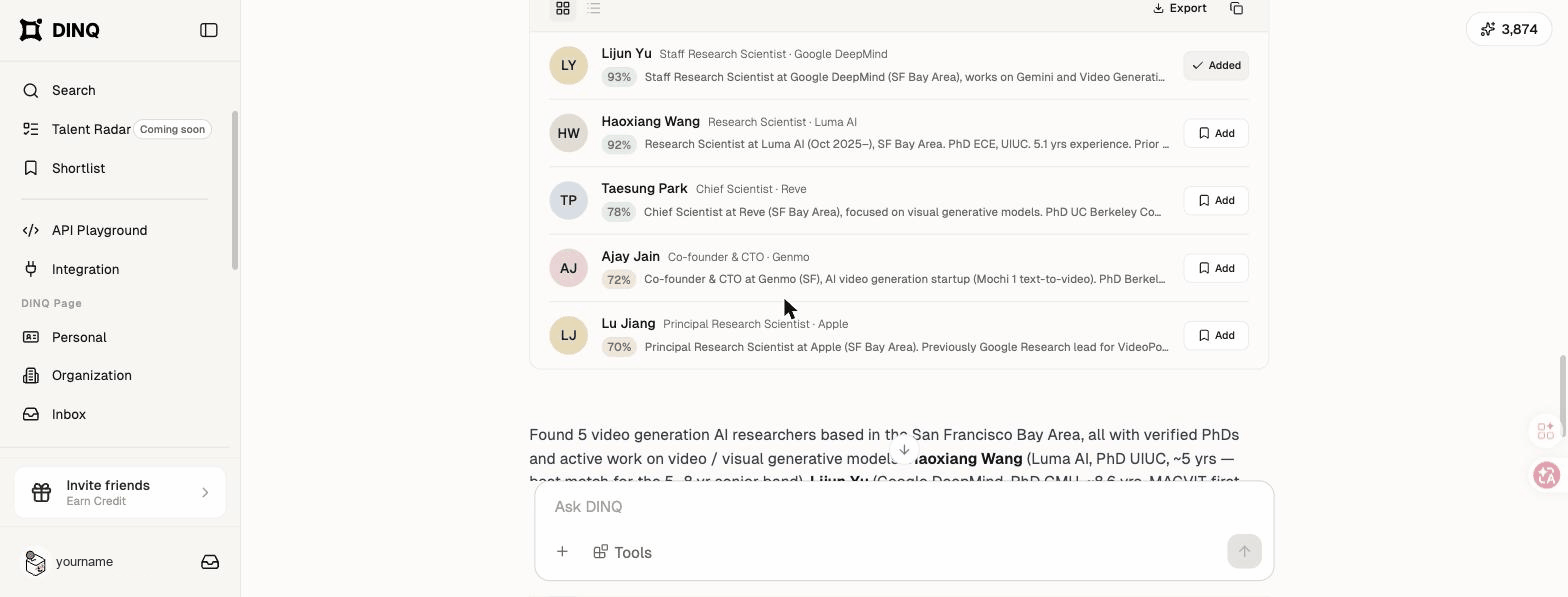
Scan the candidate list
Start by reviewing the full batch at a high level. Look for signs that the search direction is aligned with your needs:
- Are the roles and seniority levels close to what you expected?
- Do the candidates show relevant technical signals?
- Are the locations or work preferences reasonable?
- Are the results too broad, too narrow, too senior, or too junior?
Open promising profiles
Click into candidates who look relevant to review their enriched profile information. A full profile can help you understand their work, public contributions, research, background, and potential outreach context.
For deeper evaluation guidance, see Evaluate profiles.
Save candidates to a shortlist
When a candidate looks promising, save them to a shortlist. Shortlists help you organize candidates by role, project, review stage, or hiring manager follow-up.